UNIVERSITY OF KOBLENZ
Universitätsstraße 1
56070 Koblenz

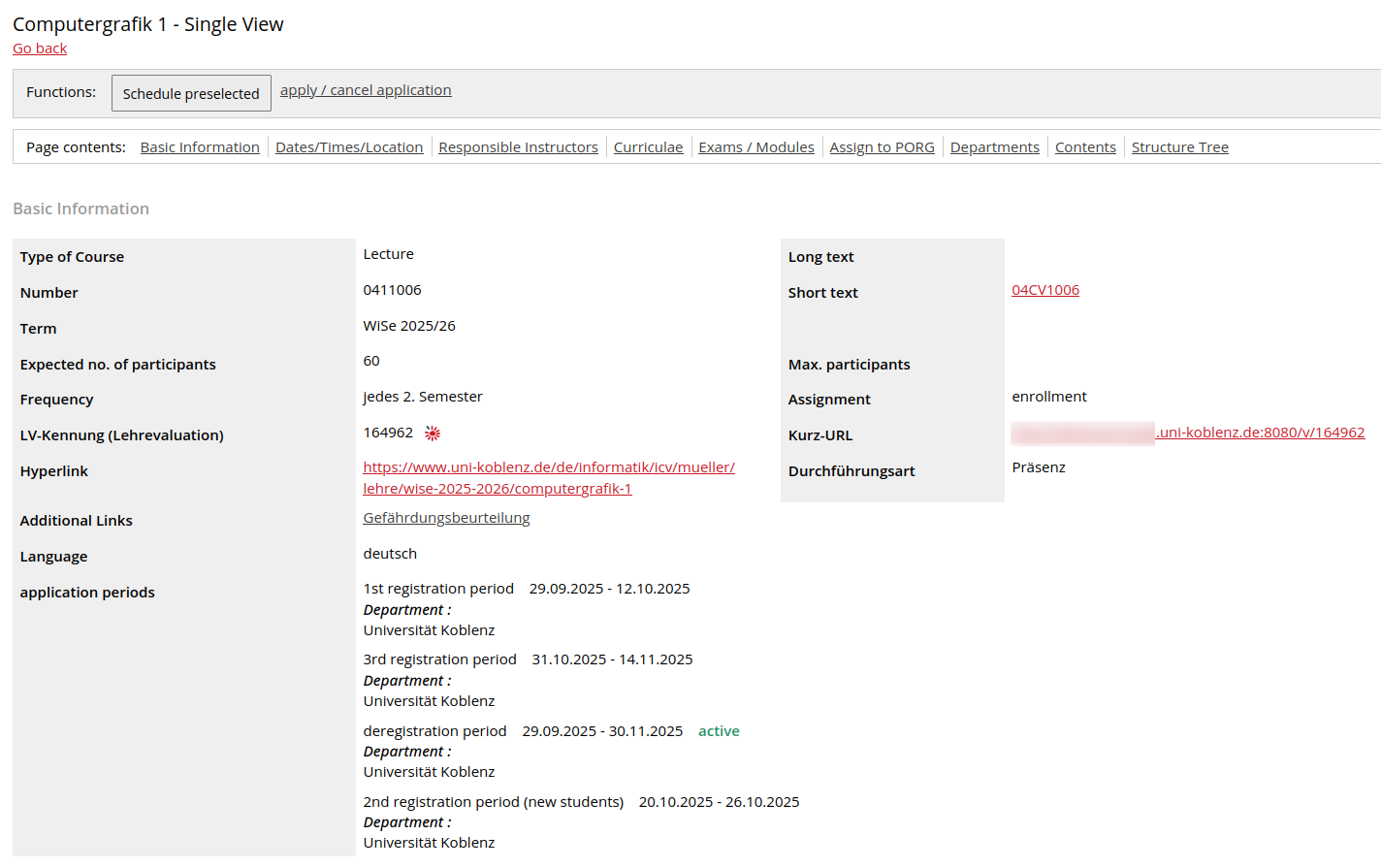
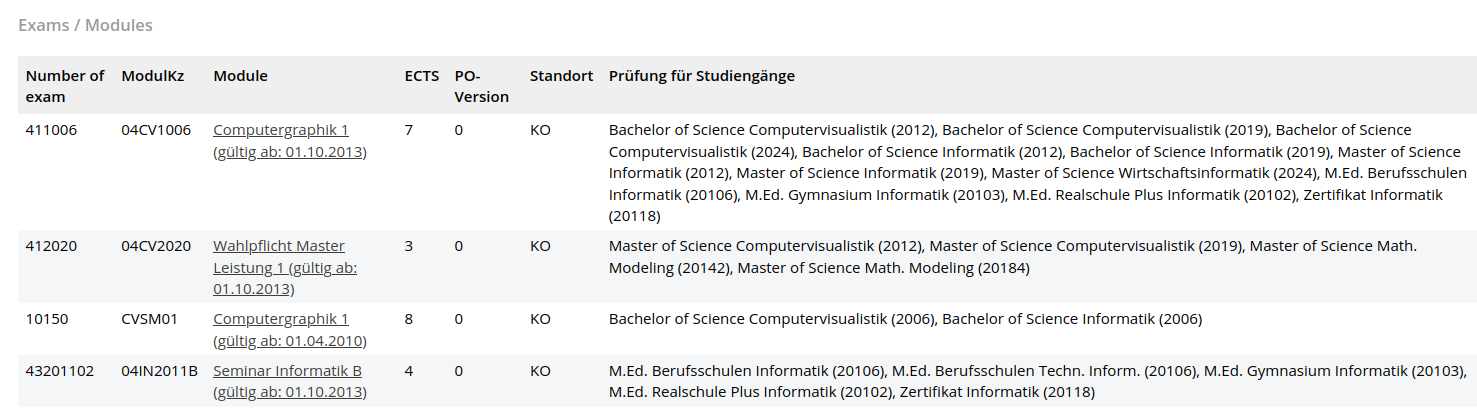
To do this, please access the associated course, as described here, and then take a look at the corresponding examination number which you find under "Exams / Modules". As in the example below, there may be different examination numbers for a single exam and you may have to select the examination number that matches your study programme depending on the associated text.
Example: You are studying Computer Visualistics in the Bachelor's programme in the examination regulations version of Faculty 4 from 2024. In this case, you would have to copy the examination number 411006 as shown in the example screenshot:
Under My Functions -> Administration of exams -> Apply for exams you can register for examinations of your study programme after you have read and accepted the formal information on registration.
If you know the correct examination number for the examination you wish to register for, you can navigate through the examination tree of your study programme as follows. Example: Exam number 411006 in the Bachelor of Computer Visualistics in the examination regulations version of Faculty 4 from 2024:
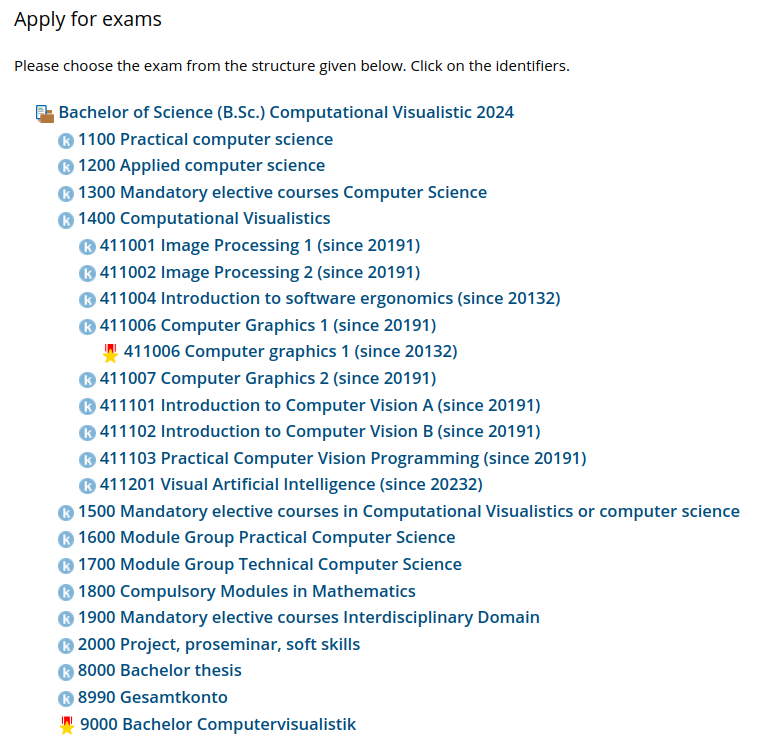
As you can see in the previous illustration, symbols appear in the examination tree in front of the examinations or module accounts, for example a "k" and an order star. You can find out what these mean by hovering over the corresponding symbol with the mouse cursor or by tapping and holding on the symbol on devices with touchscreen displays.

If a grey x symbol appears in front of an examination in the examination tree above, you apparently have already registered for this examination under a different upper-level account (e.g. a different module group). Regardless of whether you passed this examination or not, you cannot edit this examination under the currently selected upper-level account (e.g. register for this examination). If you wish to register for or deregister from a currently opened exam, you must follow the same path (under the same upper-level account) that you used for your first registration.
If you have changed your university course, please apply to the Examinations Office for recognition, as this examination is initially still assigned to your previous university course, which you are no longer studying and in which you can therefore no longer register for examinations via KLIPS.
Click on "Registration" at the examination you wish to register for. If the registration period is not current or all places are taken, it is not possible to register via KLIPS.
If you think this is a mistake, please contact the examiner responsible. Also contact them if no examination organisation records "fold out" or no current ones are available and ask them to create an examination (technically a so-called examination organisation record) for your study programme if necessary.
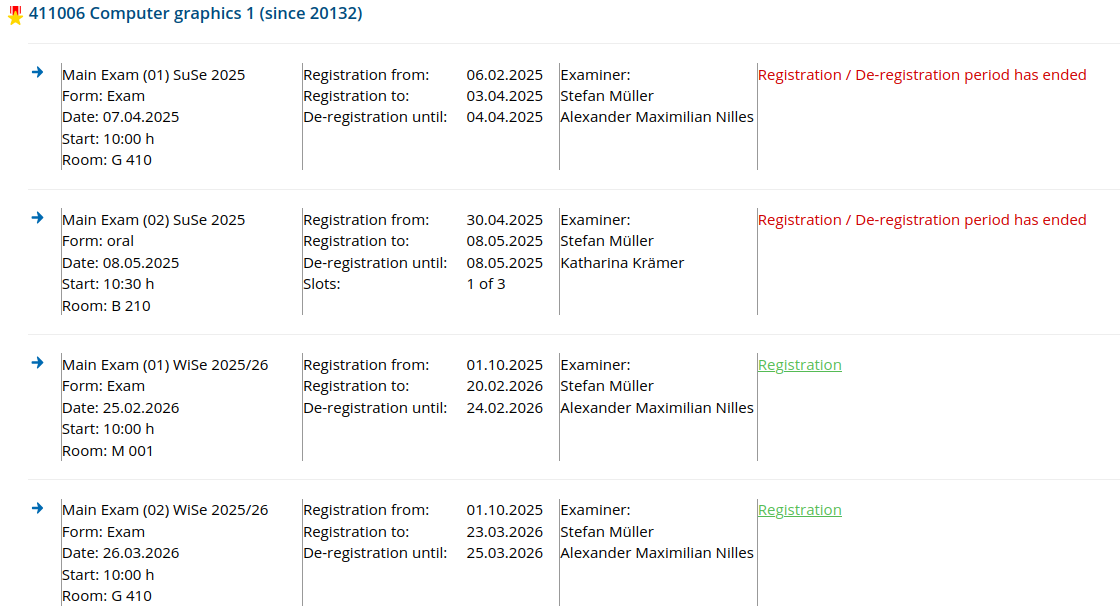
After clicking on "Registration", you must confirm the examination registration once again:
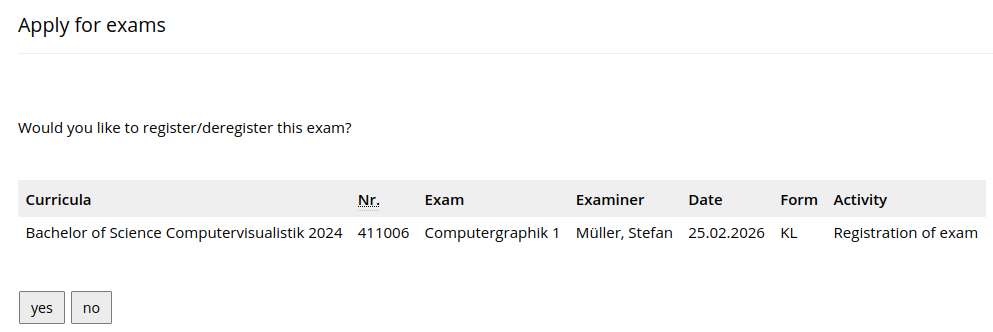
You will then see the following view:
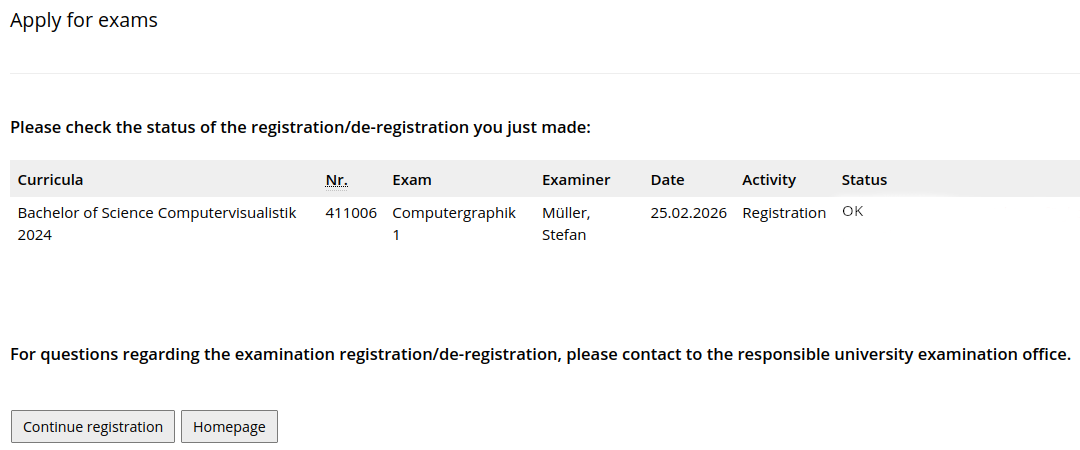
If the exam registration was successful, you should receive a confirmation email to your university email address. In this case, the examination must also be listed under My Functions -> Administration of exams -> Info on exams (internships). Please be sure to check whether this is the case! If this is not the case, please try to register again. If the registration fails with an error message multiple times, please contact us ad klips@uni-koblenz.de.
UNIVERSITY OF KOBLENZ
Universitätsstraße 1
56070 Koblenz
© Universität Koblenz